Security Scanning
Kube Sentinel integrates with the Trivy Operator to provide comprehensive security scanning for your Kubernetes workloads. This includes vulnerability scanning, configuration auditing, and secret detection.
Prerequisites
To use security scanning features, you need to install the Trivy Operator in your cluster:
# Add the Aqua Security Helm repository
helm repo add aqua https://aquasecurity.github.io/helm-charts/
helm repo update

# Install Trivy Operator
helm install trivy-operator aqua/trivy-operator \
  --namespace trivy-system \
  --create-namespace \
  --set trivy.ignoreUnfixed=true
For more installation options, see the Trivy Operator documentation.
Security Dashboard
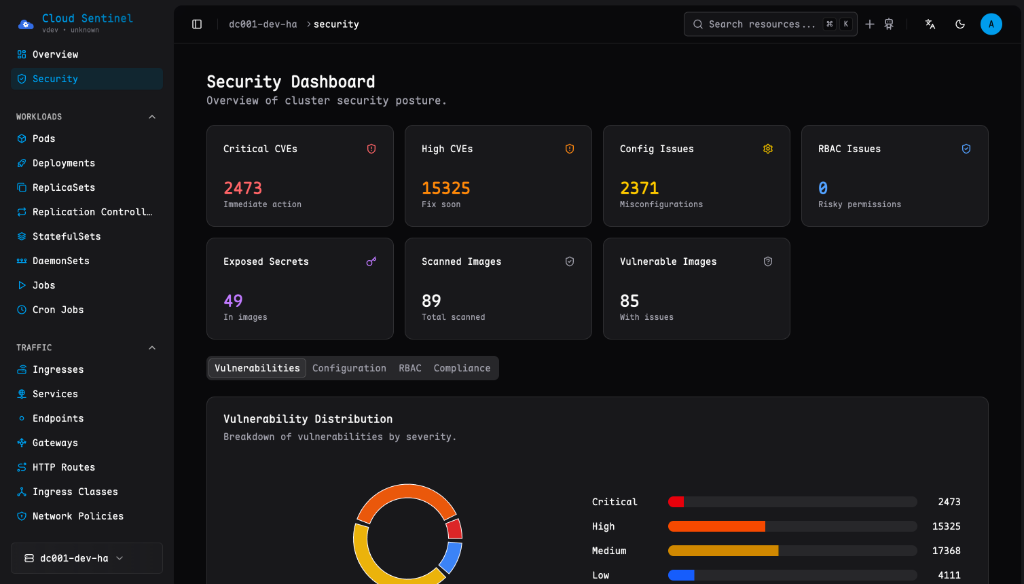
Once Trivy Operator is installed, navigate to Security in the sidebar to access the cluster-wide security dashboard. The dashboard provides:
- Summary Cards - Quick overview of critical vulnerabilities, config issues, and exposed secrets
- Vulnerability Distribution - Breakdown by severity (Critical, High, Medium, Low)
- Top Vulnerable Workloads - Workloads with the most security issues
- Top Misconfigured Workloads - Workloads with configuration problems
Report Types
Kube Sentinel displays information from multiple Trivy report types:
Vulnerability Reports
Scans container images for known CVEs (Common Vulnerabilities and Exposures). Each vulnerability includes:
- CVE ID with link to details
- Affected package and version
- Fixed version (if available)
- Severity rating
Configuration Audit Reports
Checks Kubernetes resource configurations against security best practices:
- Running containers as root
- Missing resource limits
- Privileged containers
- Missing security contexts
Exposed Secret Reports
Detects secrets accidentally committed to container images:
- API keys
- Passwords
- Private keys
- Tokens
Cluster Compliance Reports
Evaluates your cluster against security benchmarks:
- CIS Kubernetes Benchmark
- NSA/CISA Kubernetes Hardening Guide
- Pod Security Standards (PSS)
The Compliance tab on the dashboard shows pass/fail rates for each benchmark.
Resource-Level Security
Each workload (Deployment, StatefulSet, DaemonSet, Pod, etc.) has a Security tab that shows:
- Vulnerabilities - CVEs found in container images
- Config Audit - Kubernetes configuration issues
- Secrets - Exposed secrets in images
Trivy Operator Configuration
For optimal results, enable all scanner types in Trivy Operator:
# values.yaml for Trivy Operator Helm chart
trivy:
  # Enable vulnerability scanning (default)
  vulnScanner: true
  # Enable config audit scanning
  configAuditScannerEnabled: true
  # Enable secret scanning
  exposedSecretsScannerEnabled: true
Troubleshooting
No Security Data Showing
If the security dashboard shows no data:
Check Trivy Operator is installed:
bashkubectl get pods -n trivy-systemVerify CRDs exist:
bashkubectl get crd | grep aquasecurityCheck for VulnerabilityReports:
bashkubectl get vulnerabilityreports -A
Reports Not Appearing for New Workloads
Trivy Operator scans workloads on creation. If reports are missing:
- Check Trivy Operator logs for errors
- Ensure the namespace is not excluded from scanning
- Wait for the scan to complete (can take a few minutes)